

One of the most common pain points I see with SMB clients is third-party patch management on Windows clients. Windows Update takes care of the OS and Microsoft products fairly well, but everything else – 7-Zip, VLC, Notepad++, Adobe Reader, you name it – is left to fend for itself. Most smaller organizations simply don’t have the budget for a dedicated patch management solution, or the time to properly run one. The result: outdated software, open vulnerabilities, and unhappy auditors.
Luckily, there is a surprisingly capable and completely free solution for exactly this problem: WinGet Auto Update (WAU).
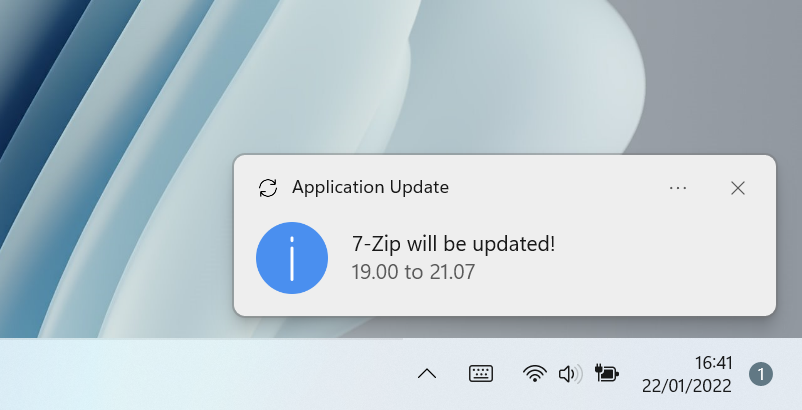
WAU is an open-source project by Romanitho that leverages Microsoft’s built-in winget package manager to keep third-party applications up to date – automatically, silently, and without any user interaction required. Users receive a toast notification when updates are applied, which keeps things transparent without being disruptive.
WAU handles updates in both the SYSTEM and user context. Machine-wide installations (the typical case for managed clients) are updated as SYSTEM – no elevated user rights needed. But it doesn’t stop there: if a user has installed applications in their own user context (e.g. via winget without admin rights, or apps that install per-user by design), WAU picks those up as well and updates them in the user’s context when they log on. This means you get full coverage without having to worry about which install scope an application used.
Key facts at a glance:
- Free and open-source (MIT license)
- Updates apps in SYSTEM context (machine-wide) and user context (per-user installs)
- Supports Allowlist and Blocklist to control which apps get updated
- Configurable via Group Policy (GPO) or Intune ADMX-backed policies
- Deployed via a simple MSI package
- Self-updating: WAU keeps itself current automatically
Deployment: it really is just an MSI
This is where WAU stands out from other tools. Download the latest WAU.msi from the GitHub releases page and deploy it like any other application – via Intune as a Line-of-Business app, or via GPO software installation. No packaging wizardry needed.
The MSI supports several install-time parameters that let you control the initial configuration. Keep in mind that most of these are only relevant if you are not managing WAU centrally via GPO or Intune ADMX policies – in that case, the policy settings take precedence and the MSI parameters become largely irrelevant beyond the initial setup.
| Parameter | Description |
|---|---|
WAUINSTALLPATH | Installation directory (default: %ProgramData%\Winget-AutoUpdate) |
UPDATESATLOGON | Run updates at user logon (1 = yes) |
UPDATESINTERVAL | Scheduled update interval (Daily, BiDaily, Weekly, BiWeekly, Monthly) |
USERCONTEXT | Enable user context updates in addition to system context (1 = yes, default: 0) |
BYPASSLISTFORUSERS | Bypass Allow/Blocklist when running in user context (1 = yes, default: 0) |
USEWHITELIST | Force Allowlist mode (1 = yes) |
LISTPATH | Path to the allow/blocklist file (UNC, URL, or GPO) |
DISABLEWAUAUTOUPDATE | Disable WAU’s self-update (1 = yes) |
NOTIFICATIONLEVEL | Toast notifications: Full, SuccessOnly, ErrorsOnly, None |
By default, WAU only updates applications installed machine-wide in the SYSTEM context. Setting USERCONTEXT=1 additionally enables a user-context run at logon, which takes care of applications installed in the user’s own scope – think apps deployed without admin rights or those that install per-user by design. Important to know: WAU is smart enough not to double-update apps here. Applications already handled in the SYSTEM context are automatically skipped during the user context run, so you won’t get redundant update attempts.
If you want the user-context run to ignore your configured Allow/Blocklist – for example, to let users keep their personal apps updated freely while still controlling the machine-wide scope – set BYPASSLISTFORUSERS=1 alongside USERCONTEXT=1.
A typical silent Intune deployment with logon-based updates, user context enabled, and GPO-managed lists looks like this:
msiexec /i WAU.msi /qn UPDATESATLOGON=1 UPDATESINTERVAL=Daily USERCONTEXT=1 LISTPATH=GPOSetting LISTPATH=GPO tells WAU to read its allow/blocklist directly from Group Policy or Intune settings – which makes central management very straightforward.
Intune deployment
In Intune, add the MSI as a Line-of-Business app (.msi format). Set the install command with your desired parameters as shown above. For detection, check for the registry key:
HKLM\SOFTWARE\Microsoft\Windows\CurrentVersion\Uninstall\Winget-AutoUpdateKey: DisplayVersion – verify it matches the deployed version.
GPO software deployment
Alternatively, place the MSI on a network share and deploy it via Computer Configuration → Software Settings → Software Installation. Since it’s an MSI, GPO handles it natively. Pass any install-time parameters via a transform (.mst) file or use the default installation and manage everything via GPO settings afterwards.
Configuration via GPO or Intune
WAU ships with an ADMX template that exposes all relevant settings as proper Group Policy settings. Download Winget-AutoUpdate.admx and Winget-AutoUpdate.adml from the repository and drop them into your central policy store (\\domain\SYSVOL\domain\Policies\PolicyDefinitions).
The settings live under:
Computer Configuration → Administrative Templates → Winget-AutoUpdateThe most important policies:
- Enable/Disable WAU – kill switch if needed
- Update interval and logon trigger – when should updates run?
- Notification level – how much do users see?
- Application Allowlist – define exactly which apps get updated
- Application Blocklist – exclude specific apps from updates
- WAU self-update – control whether WAU updates itself
For Intune, WAU also supports ADMX-backed configuration profiles. Import the same ADMX file under Devices → Configuration → Import ADMX, then create a new profile of type Templates → Imported Administrative templates and configure the WAU settings there. This gives you the same policy-driven control without needing an on-premises AD.
Start with an Allowlist – trust me
When rolling out WAU to clients, I strongly recommend starting with an Allowlist rather than updating everything at once. The winget repository is large, and not every app in it behaves perfectly during an automated update. Starting controlled gives you confidence and avoids unpleasant surprises.
The idea is simple: you define a list of well-known, safe applications to update automatically. Everything else is ignored. Over time, as you gain confidence, you either extend the Allowlist or switch to a Blocklist approach (update everything except a defined list of excluded apps).
Phase 1 – Allowlist (recommended start): Deploy WAU with USEWHITELIST=1 and a defined list of known-good applications. Typical candidates:
7zip.7zip
Notepad++.Notepad++
Mozilla.Firefox
Google.Chrome
VideoLAN.VLC
Adobe.Acrobat.Reader.64-bit
Microsoft.VisualStudioCode
Foxit.FoxitReader
Phase 2 – Extend or switch: Once you’ve validated the setup, either add more IDs to the Allowlist, or flip to Blocklist mode and only exclude apps that are known to be problematic (e.g. those with their own update mechanism like Teams or those requiring special handling).
Finding the right App ID
The key to building your allow/blocklist is knowing the correct winget App ID for each application. Here’s how to find it.
Open a terminal (PowerShell or CMD) on any Windows 10/11 machine with winget available and run:
winget search "app name"Example – searching for Notepad++:
PS C:\> winget search "notepad++"

Name        Id                      Version  Source
-------------------------------------------------------------
Notepad++   Notepad++.Notepad++     8.7.7    winget
The value in the Id column is what you put in your allow/blocklist – in this case Notepad++.Notepad++.
Another example – finding all Firefox-related packages:
PS C:\> winget search "firefox"

Name                          Id                         Version  Source
------------------------------------------------------------------------
Mozilla Firefox               Mozilla.Firefox            136.0.1  winget
Mozilla Firefox (de)          Mozilla.Firefox.de         136.0.1  winget
Mozilla Firefox ESR           Mozilla.Firefox.ESR        128.8.0  winget
Mozilla Firefox ESR (de)      Mozilla.Firefox.ESR.de     128.8.0  winget
Note that WAU supports wildcards in lists: Mozilla.Firefox* covers all Firefox channels in one entry, which is handy if you want to cover both standard and ESR builds without listing each explicitly.
Once you have your IDs, configure them either via the GPO/Intune ADMX policy or by placing an included_apps.txt (Allowlist) or excluded_apps.txt (Blocklist) file in the WAU installation directory.
Wrap-up
WAU won’t replace a full-blown patch management solution like Intune’s built-in update rings or a dedicated third-party tool for organizations that need full control, reporting, and compliance tracking. But for SMB clients where budget and resources are tight, it hits a sweet spot: easy to deploy, centrally manageable, and it just works. The combination of an MSI-based rollout, GPO/Intune ADMX policies, and a controlled Allowlist approach makes it something you can set up in an afternoon and have running reliably in production.
If you need more control – proper reporting, approval workflows, or fully packaged Intune deployments – take a look at RoboPack. It also builds on the winget repository but takes a different approach: instead of running updates on the client, it automatically creates ready-to-deploy Intune packages for installations and updates. A nice step up when your environment outgrows the WAU approach.
If you’re using WAU in your environment, feel free to share your experience in the comments – especially if you’ve run into edge cases worth documenting.
