

If you’ve ever had a user swear their iPhone is enrolled, managed, and compliant – while Conditional Access keeps kicking them into the “Set up your device to get access” loop – this one’s for you.
I ran into exactly this scenario recently, and the root cause turned out to be a lot less exotic than the symptoms suggested.
TL;DR
Compliance was never the problem. The problem was that several iOS authentication paths weren’t handing Entra ID a device identity to check compliance against in the first place.
The Symptom
Freshly enrolled iOS devices looked perfectly healthy everywhere I checked:
- Enrolled in Intune ✅
- User-assigned ✅
- Managed ✅
- Compliant ✅
- Registered in Entra ID ✅
Sign-ins from Outlook and Microsoft Authenticator worked exactly as expected. Conditional Access logs showed the correct device ID and the correct compliance state, and access was granted without drama.
But sign-ins from:
- Native iOS Mail
- Apple Internet Accounts
- Safari
- Safari-based (WebView) web authentication
…all failed. Digging into the Conditional Access sign-in logs, these attempts showed no device ID at all. Without a device ID, Conditional Access has nothing to evaluate the compliant-device grant against – so the request was treated as coming from an unrecognized device, not a non-compliant one.
The user got funneled into the “Set up your device to get access” flow, which dutifully opened Company Portal – and then just sat there. No remediation, no resolution, just a dead end.
The Actual Cause
The compliance state itself was never in question. The issue was that not every iOS authentication path uses the same mechanism to pass device identity to Entra ID.
- Outlook and Microsoft Authenticator use the MSAL broker flow, which reliably passes device context along with the sign-in request.
- Native iOS Mail, Apple Internet Accounts, Safari, and WebView-based sign-ins don’t go through MSAL at all. For these, device context has to come from the Microsoft Enterprise SSO extension instead.
Microsoft’s own documentation is explicit about this: non-MSAL apps – including Safari and Safari-WebView-based apps – require the SSO app extension to be configured before they can present a device identity during authentication.
Without that configuration in place, Conditional Access simply never receives a device ID for those flows, regardless of how compliant the device actually is. It’s not a compliance failure – it’s a missing identity handshake.
The Fix: Deploy the SSO App Extension via Intune
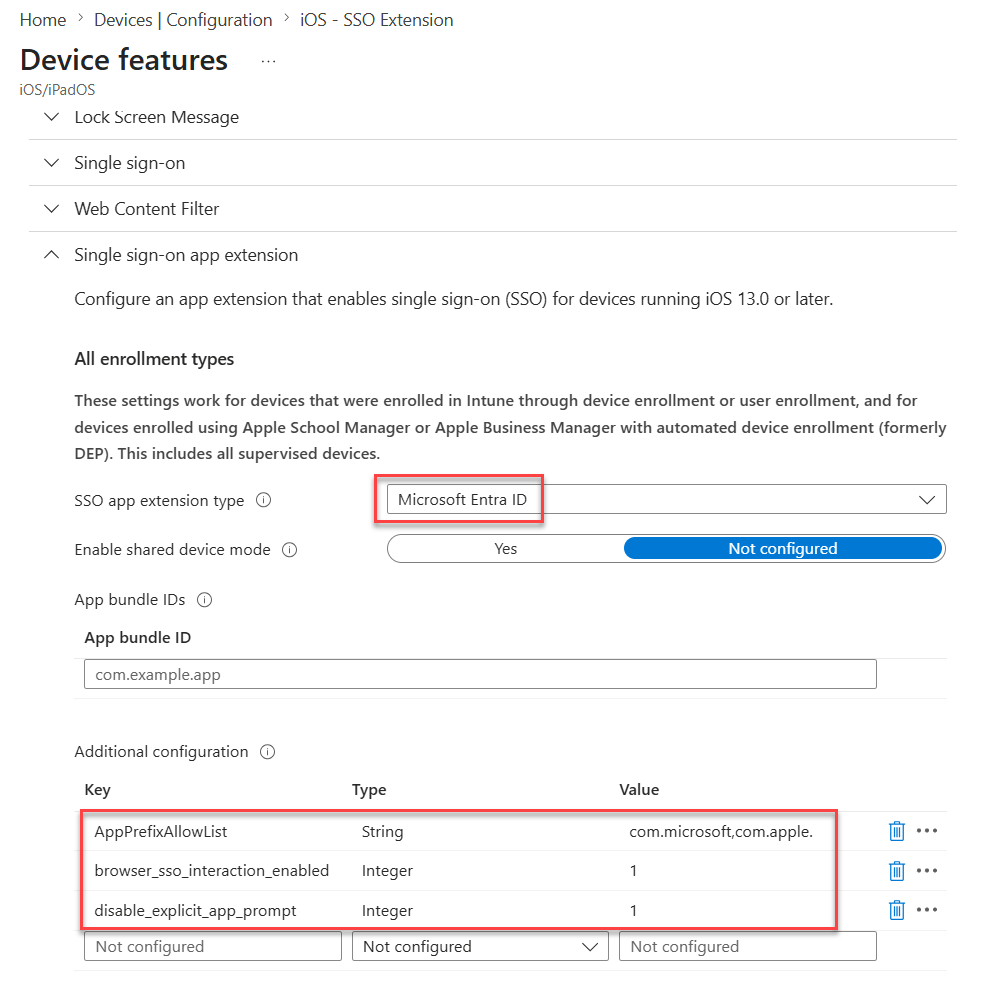
The resolution was to deploy an iOS/iPadOS Single Sign-On App Extension profile through Intune → Devices → Configuration. Create a new configuration profile for iOS/iPadOS using the Template: Device Features.
Configure the Single sign-on app extension to the following values:
SSO app extension type: Microsoft Entra ID
Enable shared device mode: Not configured

Additional configuration:
browser_sso_interaction_enabled = 1
disable_explicit_app_prompt = 1
AppPrefixAllowList = com.apple., com.microsoft.
A quick breakdown of what these settings actually do:
- browser_sso_interaction_enabled = 1 – allows the extension to handle SSO interactively inside Safari and Safari-based WebViews, instead of silently failing back to a normal (non-SSO) sign-in.
- disable_explicit_app_prompt = 1 – suppresses the extra “Allow this app to use Microsoft Entra ID… to authenticate” system prompt that would otherwise pop up per app, which is mostly noise once you’ve deliberately scoped the extension.
- AppPrefixAllowList = com.apple., com.microsoft. – restricts which app bundle IDs are allowed to hand off to the SSO extension. Here it’s scoped to Apple’s own apps and Microsoft’s apps, which is exactly what’s needed to cover Mail, Safari, and Apple Internet Accounts without opening the extension up to arbitrary third-party apps.
After Deployment
Once the profile applied, the same authentication flows – native Mail, Apple Internet Accounts, Safari, and Safari WebView sign-ins – started passing a proper device ID into Conditional Access. Compliance was evaluated correctly, and access was granted without users ever seeing Company Portal again for this.
Takeaway
If you’re troubleshooting Conditional Access failures on iOS and the device already shows as enrolled, managed, and compliant in Intune and Entra ID, don’t stop at compliance. Check which app the user was signing in from.
MSAL-based apps (Outlook, Authenticator) → device context comes from the broker.
Everything else on iOS (Mail, Safari, Apple’s own account handling) → device context comes from the SSO app extension, and if that profile isn’t deployed, Conditional Access will never see a device ID for those flows – no matter how compliant the device is.
It’s a small profile to deploy, but it closes a gap that’s easy to miss if you’re only looking at the compliance dashboard and not at which sign-in flow is actually failing.
Sources
- Microsoft Enterprise SSO plug-in for Apple devices – Microsoft identity platform
- Configure iOS/iPadOS Enterprise SSO app extension with MDMs – Microsoft Intune
- Single sign-on (SSO) for iOS/iPadOS and macOS – Microsoft Intune
